

Logs
You can view logs from all your agent’s conversations in the Logs sub-section. This includes system logs that provide updates on your agent’s status, as well as logs from any integrations you have installed: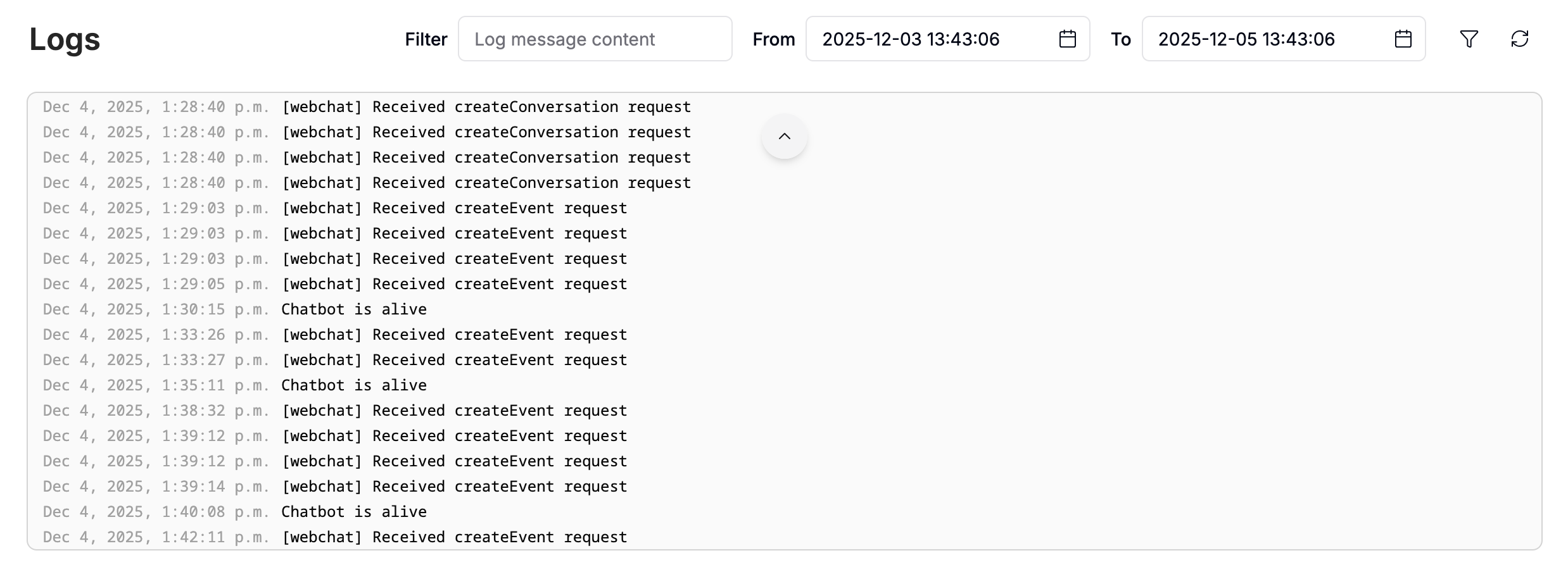
Custom logs
You can add custom logs when writing code in Studio—just use JavaScript’sconsole.log:
Events
Events represent what happens within your bot, such as messages from users and system-level occurrences. You can view all incoming events processed by your agent in the Events section: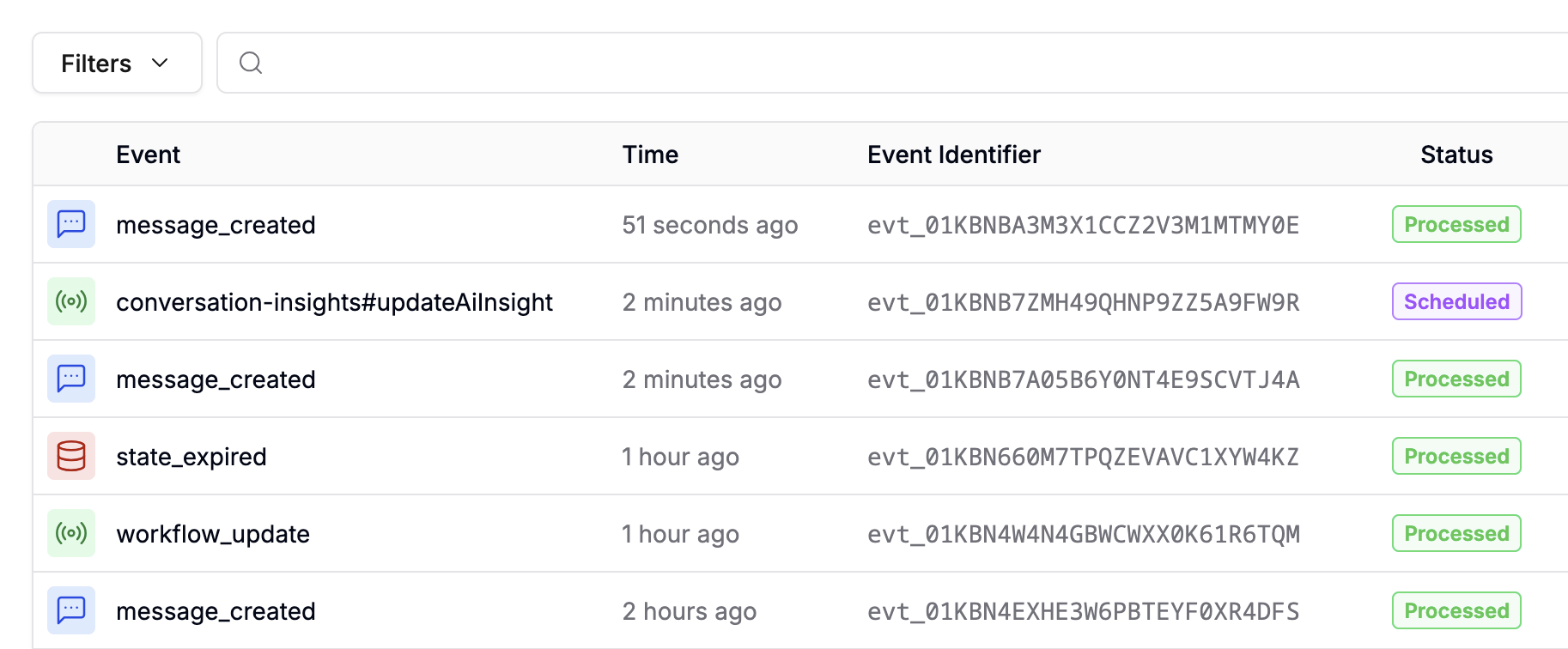
What counts as an event?
What counts as an event?
An event is any action that triggers bot activation. Only incoming messages & events that a bot listens to count towards your event quota.The following actions count as an incoming message & event:
- A user saying “Hello” to a bot
- A reaction being added to a message
- A Trigger that opens the bot
- A session timeout event
- Opening the bot’s shareable URL
- Publishing your bot (counts as 3 events)
- A message sent by the bot in response to a user message
- An execute code card
- Workflow transitions
Event data
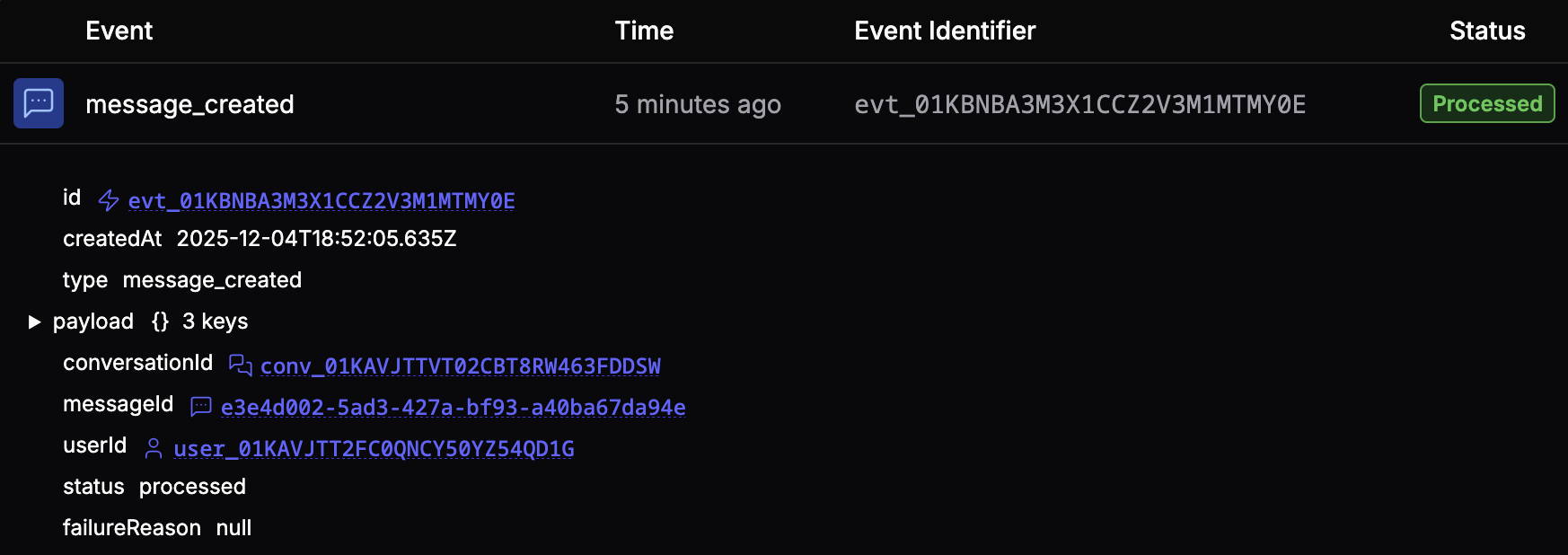
Select any event to view a detailed JSON representation of all its associated data: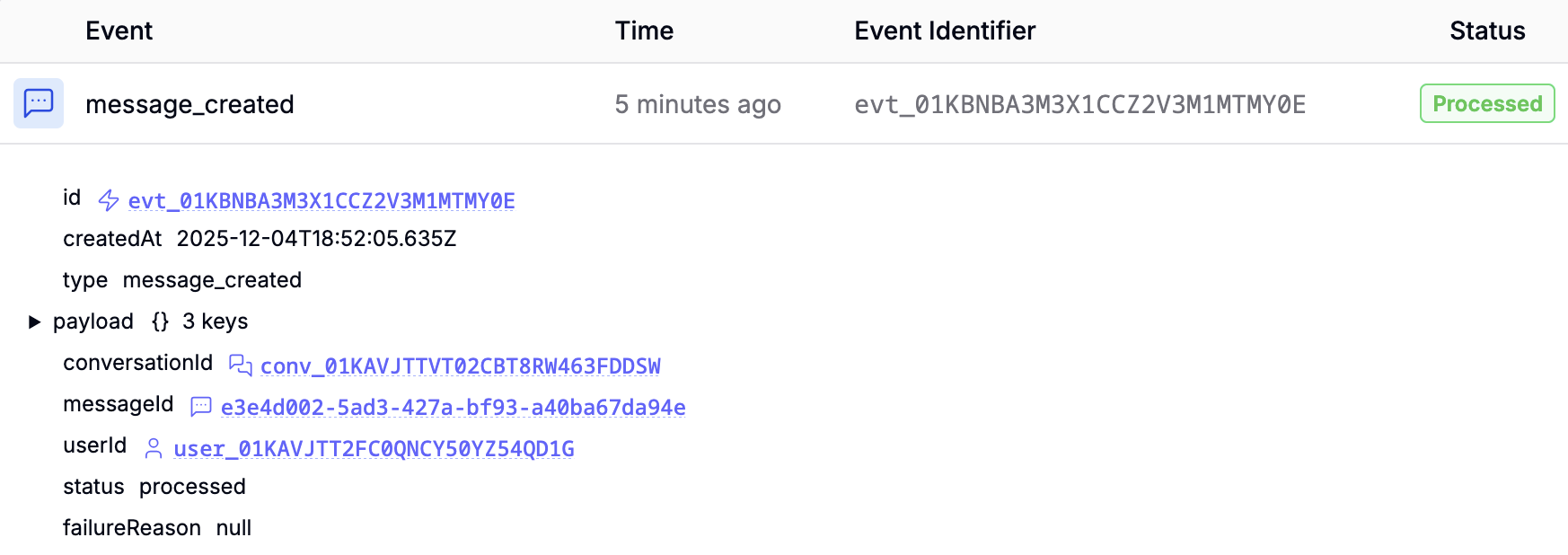
Quota
Incoming events count towards your plan’s Incoming Messages & Events quota. If you need to increase this quota, go to the Billing section.Files
You can view all files uploaded to your agent in the Files section. This includes:- Files uploaded by users
- Files indexed as part of a Knowledge Base
- System files
- Files you’ve uploaded yourself using the Files API
Inspect file data
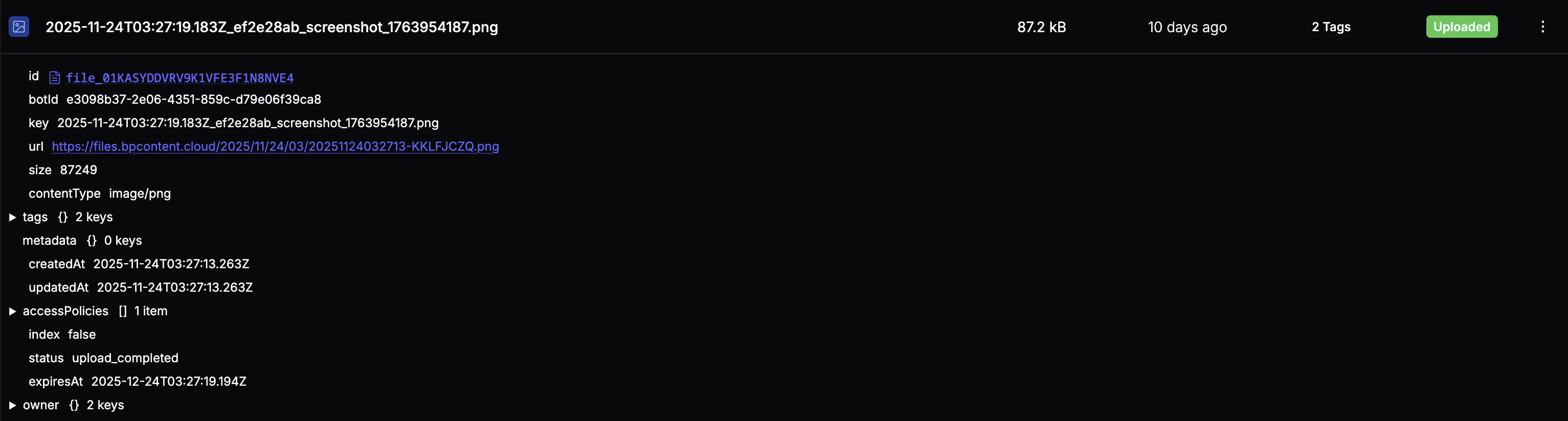
Select any file to view a detailed JSON representation of all its associated data: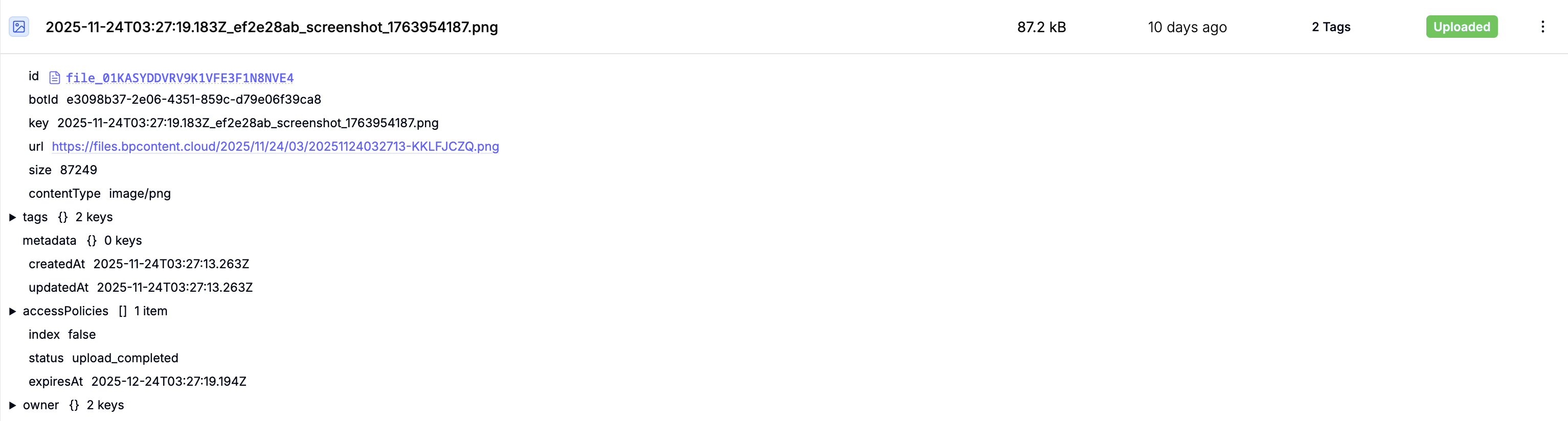
View a file
To view a file, select it and open its URL.Download a file
To download a file, select to open additional options, then Download.Delete a file
To delete a file, select to open additional options, then Delete.Quota
Any files you store count against your File Storage quota. You can increase your quota in your dashboard’s Billing menu.Issues
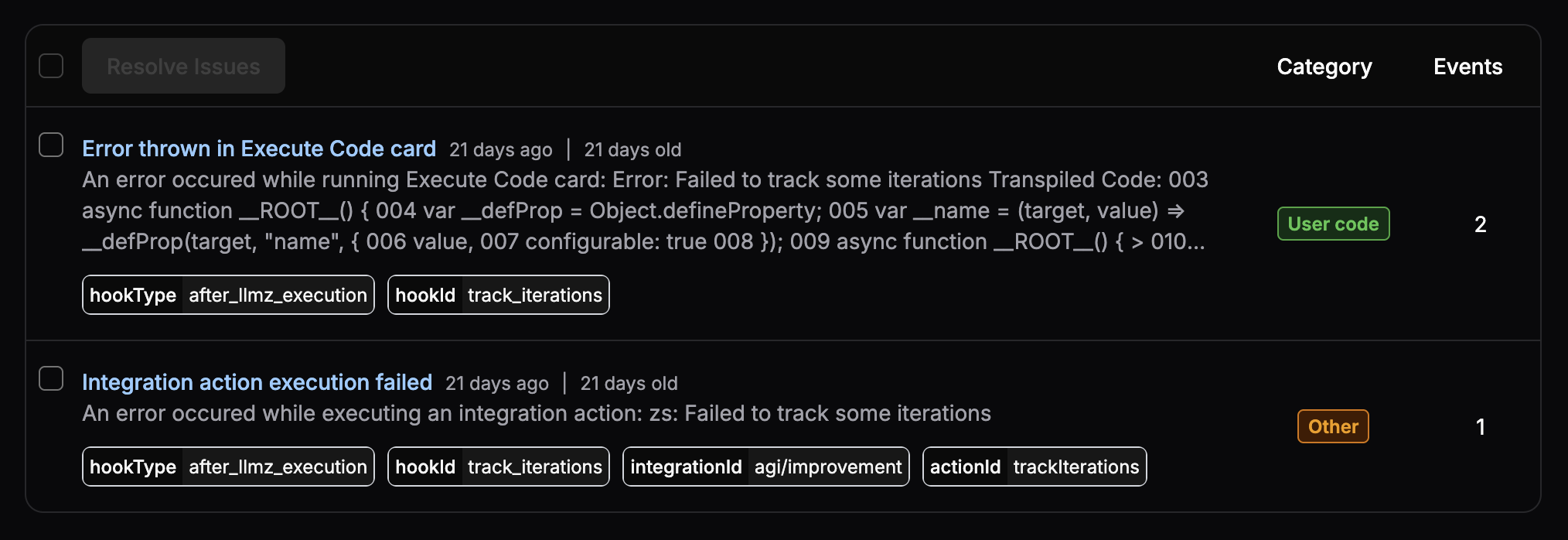
You can view any problems or errors your agent encountered in the Issues sub-section: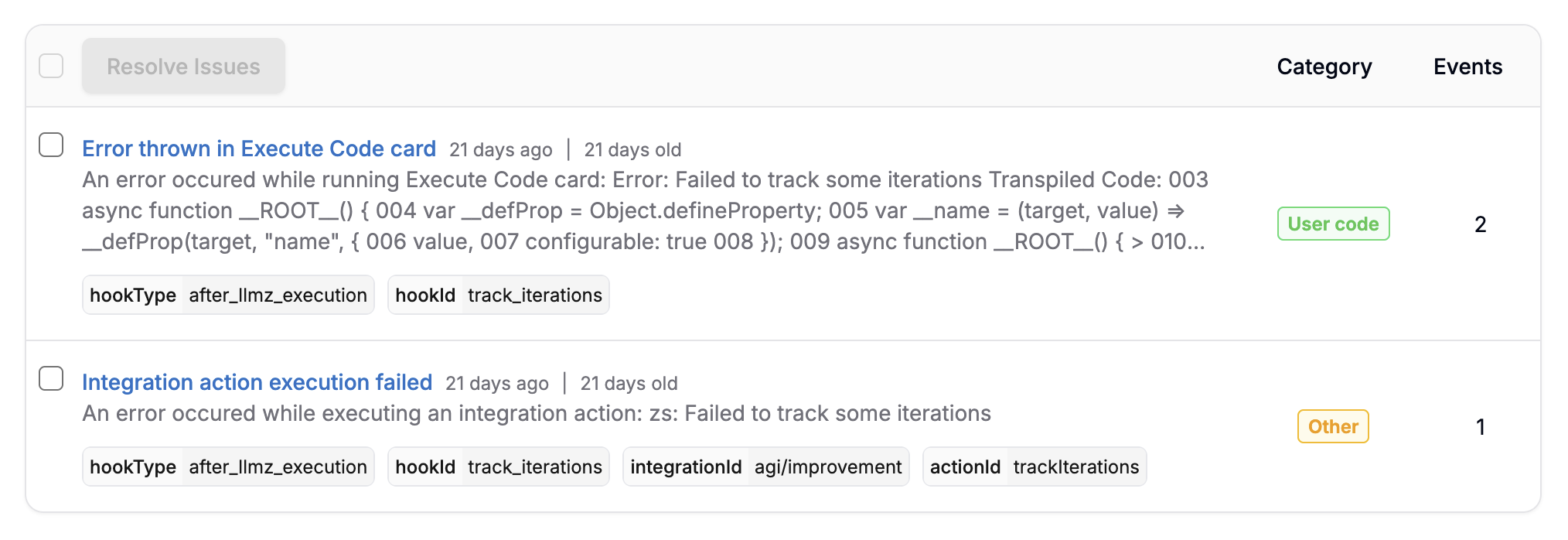

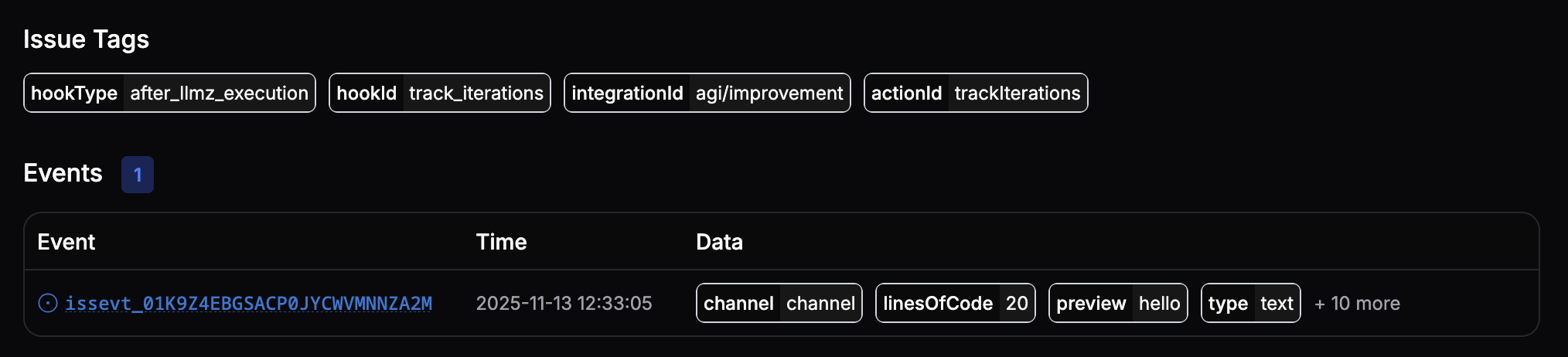
- Its payload
- The associated user and conversation IDs
- The channel or integration on which it occurred